Studio
Every output Studio makes, and its options
Studio turns the notebook's sources into something new. Click an output to open its options; the defaults are already chosen, so Generate now makes it straight away. Every output lets you pick the sources to use, the language, and a focus in your own words, with a few suggested ideas to start from (More ideas gives new ones).
Outputs take a few minutes. You can keep working, and the app can show a browser notification when one finishes. Each output lists how it was made: View prompt and sources shows the focus and sources it used, and its menu names the model that made it (Made with …).
Reports
A written report from your sources.
- Format: Document (a structured text document, as PDF or Word) or Interactive (a page with sections to explore, which can embed the notebook's other outputs).
- Templates: Learning Overview, Briefing Doc, Study Guide and Blog Post. You can edit a template's instructions and save them as the workspace default.
- Reports open with a Contents list, and Recommended cards suggest other outputs to add for a section.
- Select a passage and choose Explain to ask the chat about it.
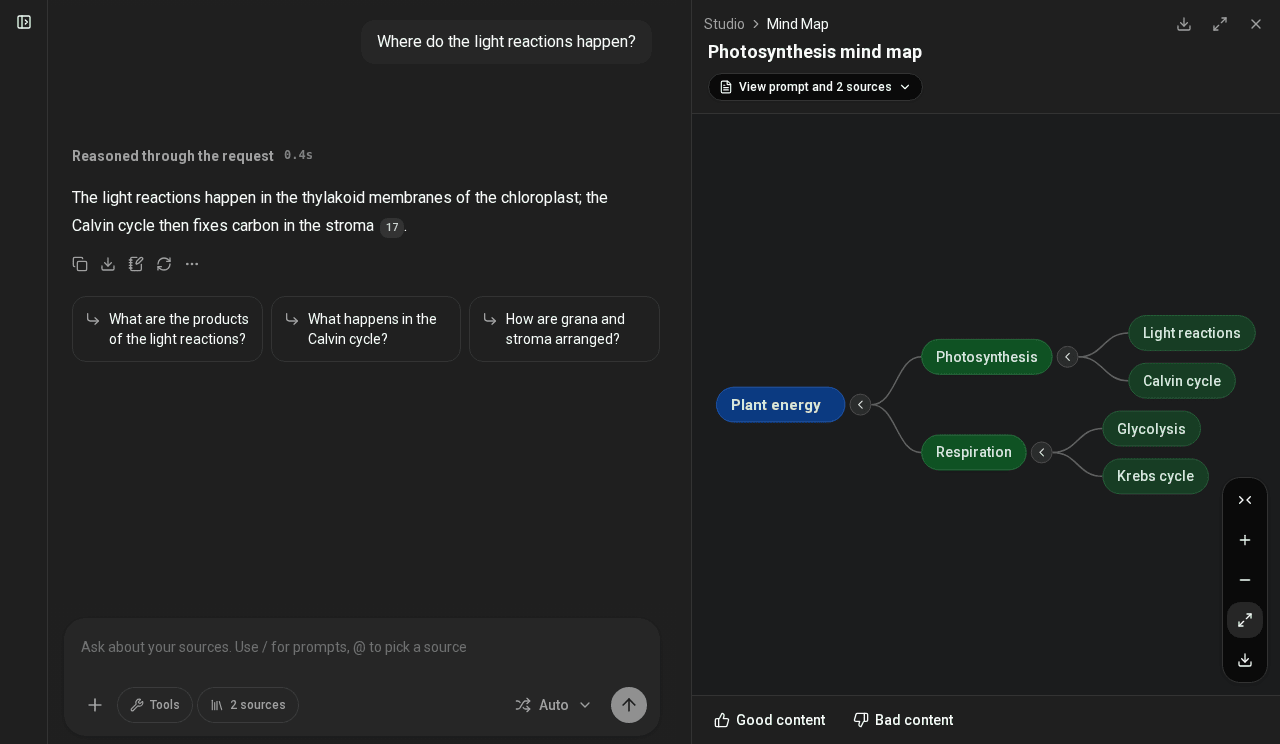
Mind Map
A map of the main ideas and how they connect. Level of detail: Overview, Standard or Detailed. In the viewer you can expand and collapse branches, zoom, fit to screen, download as PNG or SVG, and click a topic to ask the chat about it.
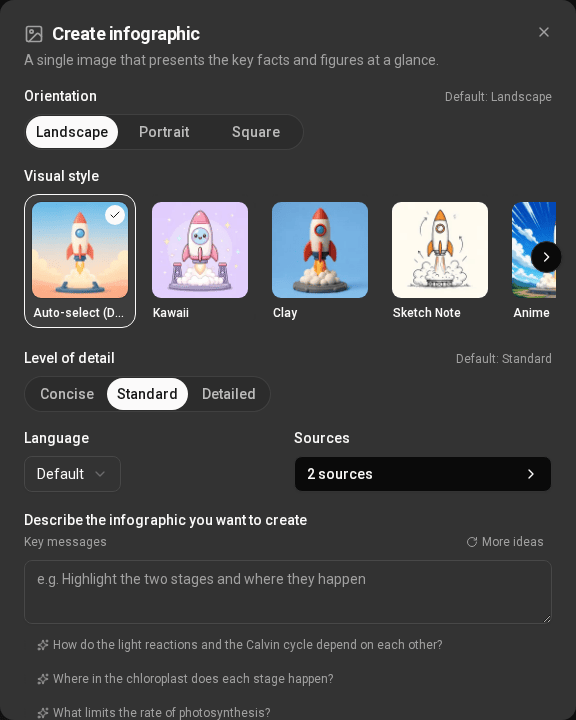
Infographic
One illustrated image of the key facts and figures.
- Orientation: Landscape, Portrait or Square.
- Level of detail: Concise, Standard or Detailed.
- Visual style: Auto-select, or one of ten styles: Sketch Note, Kawaii, Clay, Anime, Editorial, Instructional, Bento Grid, Bricks, Scientific and Professional.
Flashcards
A study deck, question on one side and answer on the other. Number: Fewer, Standard or More. Difficulty: Easy, Medium or Hard. Explain sends a card to the chat for a longer explanation.
Quiz
Scored multiple-choice questions with one right answer. Number and Difficulty as for flashcards. Once you answer, each option shows why it is right or wrong, and Explain takes the question to the chat.
Slide Deck
An editable PowerPoint (.pptx) deck. Format: Detailed deck (full text, made to be read on its own) or Presenter slides (clean slides with talking points in the speaker notes). Length: Short (about 6 slides), Default (about 10) or Long (about 16).
Data Table
An Excel workbook of the structured facts in your sources, for example one row per study with its sample size and main outcome.
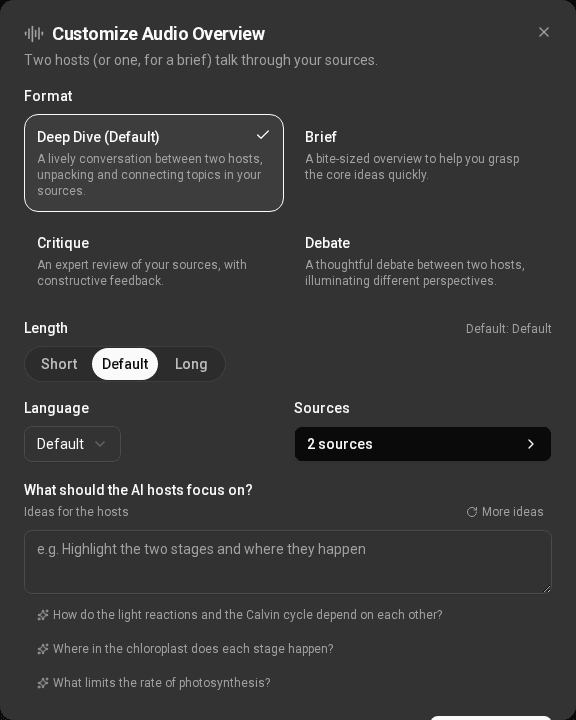
Audio Overview
A podcast-style conversation about your sources, read aloud with natural OpenAI voices.
- Format: Deep Dive (two hosts), Brief (one narrator, a short overview), Critique (an expert review, two voices) or Debate (two hosts arguing different views).
- Length: Short (1 to 2½ minutes), Default (3 to 5½ minutes) or Long (10 to 30 minutes). A Long episode runs as long as your sources support, up to 30 minutes, and ends sooner for thin material.
There is no voice to choose: the voices are cast for each episode. The app reads the topic and the format and gives each host a distinct voice that suits it. By default Marin narrates, and Marin and Cedar host.
Audio plays in the app, with a transcript.
Video Overview
A narrated, animated explainer video, read by one narrator.
- Format: Explainer (a full overview, as long as the material needs, up to your plan's limit) or Short (about a minute).
- Visual style: Auto-select, Classic, Whiteboard, Playful, Dark, Minimal, or Custom, a look you describe.
How long a video can be depends on your plan: up to 10 minutes on Pro and up to 5 minutes on Plus. The Free plan doesn't make videos. See Plans and credits.
Managing outputs
Each output's menu has Open (once it is ready), Try again (if it failed or was cancelled), Rename and Delete. Deleting an output also deletes its file, and only the workspace Owner can do it. Viewers can open outputs but not make them.
Sharing an output
A workspace Owner can share a finished output with Share publicly in its viewer. It makes a read-only copy that anyone with the link can open without signing in, until the link expires (after 7 days by default, 30 days or never) or is revoked. The link opens the output in the same viewer you see. See Workspaces and sharing.
Which model writes outputs
Workspace settings → Models → Studio outputs model chooses the model that writes every output: the recommended model and its fallback, Auto (the same as the chat model), or a model and fallback for each output type. If the model fails, the fallback gets one more try. The model used is shown as Made with …, with (fallback) when the fallback made it.
System Instructions also shape every output's tone, audience, format and length.