Notebooks and sources
Uploading files, choosing a parser, Google Drive, Nextcloud and research imports
A notebook holds a set of sources. The chat and Studio only use the sources that are ticked in the Sources panel. Untick a source to leave it out, or use Select all sources. Click a source to read its Source guide, an AI-written summary of what it covers. A citation's Summary button shows the same guide (see Chat and citations). A source's menu has Remove from notebook, which takes it out of this notebook only; the document stays in the workspace.
Owners and Editors can create notebooks, add and remove sources, and import. Viewers can open notebooks and read them.
Uploading files
Use Add sources → Upload files, or drag files or whole folders onto the notebook. Dropped folders keep their structure. The dialog lists the file types it accepts under Supported File Types. The limit is 500 MB per file.
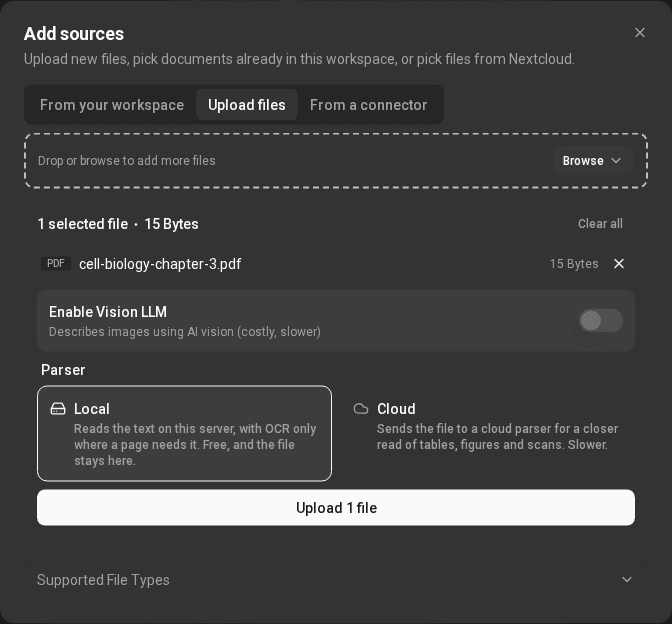
Local or Cloud parser
Before uploading, choose how the file is read:
- Local reads the text on this server, with OCR only where a page needs it (PyMuPDF4LLM). It is free, and the file never leaves the server.
- Cloud sends the file to the server's cloud parser for a closer read of
tables, figures and scans: Datalab or LlamaCloud, whichever the server is set
up with. With Datalab, the few file types it can't open (RTF, some
macro-enabled, binary and template Office formats, BMP, SVG,
.tif, HWP), and any file it fails to read, go to LlamaCloud instead. It is slower, and it costs credits per page once billing is on (see Plans and credits).
If a parser can't read a file type, the dialog tells you which files were skipped.
Vision
Enable Vision LLM asks a vision model to describe the images in your files, so charts and figures can be searched and cited. It is slower and costs more, so it is off by default.
Connectors
Connectors are set up under Workspace settings → Connectors. Only the ones this server offers are listed: Google Drive, Nextcloud, Email (IMAP), and MCP servers.
A Google Drive, Nextcloud or Email connection belongs to your account, not to one workspace. It is on in every workspace you belong to, including new ones and other people's workspaces you join, and it stays when you delete a workspace. In a workspace you share, the other members' chats and automations can use it too. Owners and Editors can add connections; Viewers can't.
Your connectors, on the left of that page, lists every connection the workspace can use: its MCP servers and the Google Drive, Nextcloud and Email connections, yours and other members'. Pick one to open its settings; a type with more than one connection opens a list of them, each card marked Yours or Another member's. A connection switched off in this workspace is marked Off; a type with some connections off shows how many are on, such as "1 of 2 on". The chat's MCP Connectors menu marks them the same way.
For a Google Drive, Nextcloud or Email connection, its owner sees an Enabled in this workspace switch in its settings. Switching it off needs the Owner role in that workspace, and removes from that workspace, without asking, the Google Drive files the connection brought in. Nextcloud files stay, and mail is never stored, so there is nothing to remove for Email. Disconnect in a connection's settings removes it from every workspace; Google Drive and Nextcloud files you already added stay. Email has no Disconnect there: its mailboxes are removed one by one on its card. Other members' connections open read-only, with no switch, and only their owner can manage them.
Google Drive
Choose Connect on the Google Drive card and approve access at Google. The app asks only for the files you pick: it can't see the rest of your Drive. You can also connect from a notebook, in Add sources → From a connector. Finish at Google in the same browser within 10 minutes: Google's page opened anywhere else (a link someone sent you, another browser) connects nothing, so nobody can attach your Drive to their account. If it took longer, connect again.
Then choose Choose files from Google Drive. Google's own picker opens; pick the files and they are added as sources. Google Docs, Sheets and Slides are converted on the way in. Picked files are checked once a day, in the workspace you connected Drive from, and read again when they changed in Drive. Disconnect removes the app's access at Google, and the connection in every workspace; files you already added stay. If Google doesn't confirm that access was removed, the app says so: remove it yourself under Security → Third-party connections in your Google Account.
Nextcloud
Choose Connect on the Nextcloud card and sign in to Nextcloud in the tab that opens; the page connects by itself when you grant access. Then use Add sources → From a connector to tick files or folders. The Vision and parser choices are offered here too.
Picked files are copied once. Nothing keeps syncing, so if a file changes in Nextcloud, use Refresh from Nextcloud in that document's menu.
One import can bring in up to 200 files; for more, pick a smaller folder. Each file can be up to 500 MB. Folders more than 8 levels deep are folded into the eighth level. You can start up to 10 Nextcloud sign-ins in 10 minutes.
Email (IMAP)
Email (IMAP) adds a mailbox the assistant can search and read, read-only. Mail is read when it is needed and is never imported as a source, and nothing in the mailbox is ever changed. See Email.
MCP servers
MCPs connects an MCP server, such as Exa or Tavily web search. Research can then search Exa or Tavily, Read a web page can use a Browserbase server, and the chat's Tools menu offers Exa, Tavily and, with a Browserbase server, Browserbase.
Each MCP server belongs to the workspace it was added in, not to your account.
A workspace's Owner or Editor can add their own MCP server, with their own
key: paste its configuration (name, url, and the headers that carry your
key) and use Test Connection first. Calls go to that server on your key,
so their cost is on your bill with that service. The address must be
https on the standard port, a public domain name (not an IP address or a
name that only works inside a network), and reach only public addresses;
anything else is refused. Keys show as •••• plus their last four
characters to everyone, and are kept when you save without retyping them.
Only the person who added a server, or an administrator, can change it; the
person who added it or the workspace's Owner can delete it. If you leave the
workspace or are removed from it, the servers you added there are deleted, so
your key is not used after you go. Connection tests are limited to 10 a
minute.
The Exa, Tavily and Browserbase servers the site provides are added by an administrator and limited to an approved list of addresses. Every MCP tool asks before it runs unless you chose Always allow, and tools that open a web address always ask.
Research: search and import
The Search the web for new sources box finds new material and imports it as sources. Choose where to search:
- Web and platforms: the web, Google Search, YouTube, Reddit, Instagram, TikTok, Google Maps, Indeed, Amazon and Walmart. Exa and Tavily are listed too, and work once the workspace has their MCP connector. Until then they show Not connected. They use the workspace's own API key.
- Academic: PubMed, arXiv, medRxiv / bioRxiv and Google Scholar. Results marked Open access have a free full text, which is imported when it can be.
Fast research looks for a handful of good sources. Deep research reads more widely and ranks what it finds, and takes longer. Tick the results you want and add them, up to 50 at a time.
What each platform finds
- YouTube: videos, with the description and the transcript when the video has one. A pasted video link becomes a source the same way.
- Reddit: posts that match your words, from all of Reddit.
- Instagram: public posts, reels and profiles that match your words, found through Google. A single word that is an account's name gives that account's latest posts instead. Comments, hashtags and Instagram's own search need a login, so they aren't offered.
- TikTok: your words are searched as hashtags, because TikTok's own search needs a login. Unusual words may find nothing.
- Google Maps, Amazon, Walmart, Indeed: places, products and job ads that match. Indeed can take a minute or two.
In chat, the assistant can also read comments on a YouTube or TikTok video (up to 100 TikTok comments at a time) and the details of an Instagram profile, with its latest 6 posts at most.
Some sites block automated searches from time to time. If that happens, try again later or search a different source.
Read a web page
Read a web page is in the same menu, after Exa and Tavily. Paste a link and choose Add page: the page is added as a source and read in the background. If the workspace has a Browserbase MCP server, the page is opened in a real browser, so pages built with JavaScript work too; otherwise it is read the same way as search results you add. Only public http and https addresses are accepted. A page the workspace already has is linked again, not read twice.
Search several at once
Search several at once turns the source menu into tick boxes. Tick up to 4 sources and they are searched side by side, each showing its own progress. Each result says where it came from, such as From PubMed, and if a source doesn't answer, the results say so. Your choice is remembered in this browser.
Limits and costs
- A query can be up to 500 characters.
- A workspace can make up to 120 searches a minute, pages read with Read a web page included. Agents' scraper and academic searches count towards the same limit (see Connect your agent).
- Web asks the site's own search engine first, which is free. Only if it finds nothing does Google Search run, at Google Search prices.
- Google Search, the platforms and the web pages you import cost credits; see Plans and credits. Academic searches are free.
- If your credits have run out, the search says so.
Managing notebooks
The notebook menu lets you Copy notebook (with its sources and notes), Pin to featured on the home page, Configure chat, Customize notebook (its name and emoji) and Delete chat history. Owners also see Share notebook… and Share chat publicly… (see Workspaces and sharing). To delete a notebook, use Delete in its card's menu on the home page. Deleting a notebook removes its notes and source links, but your documents stay in the workspace. Only the workspace Owner can delete a notebook.